PC GAMING. LIVING-ROOM COMFORT.

Your games.
A bigger stage.

Bring your PC library to your Samsung TV. Pick a game, grab your controller and settle in.
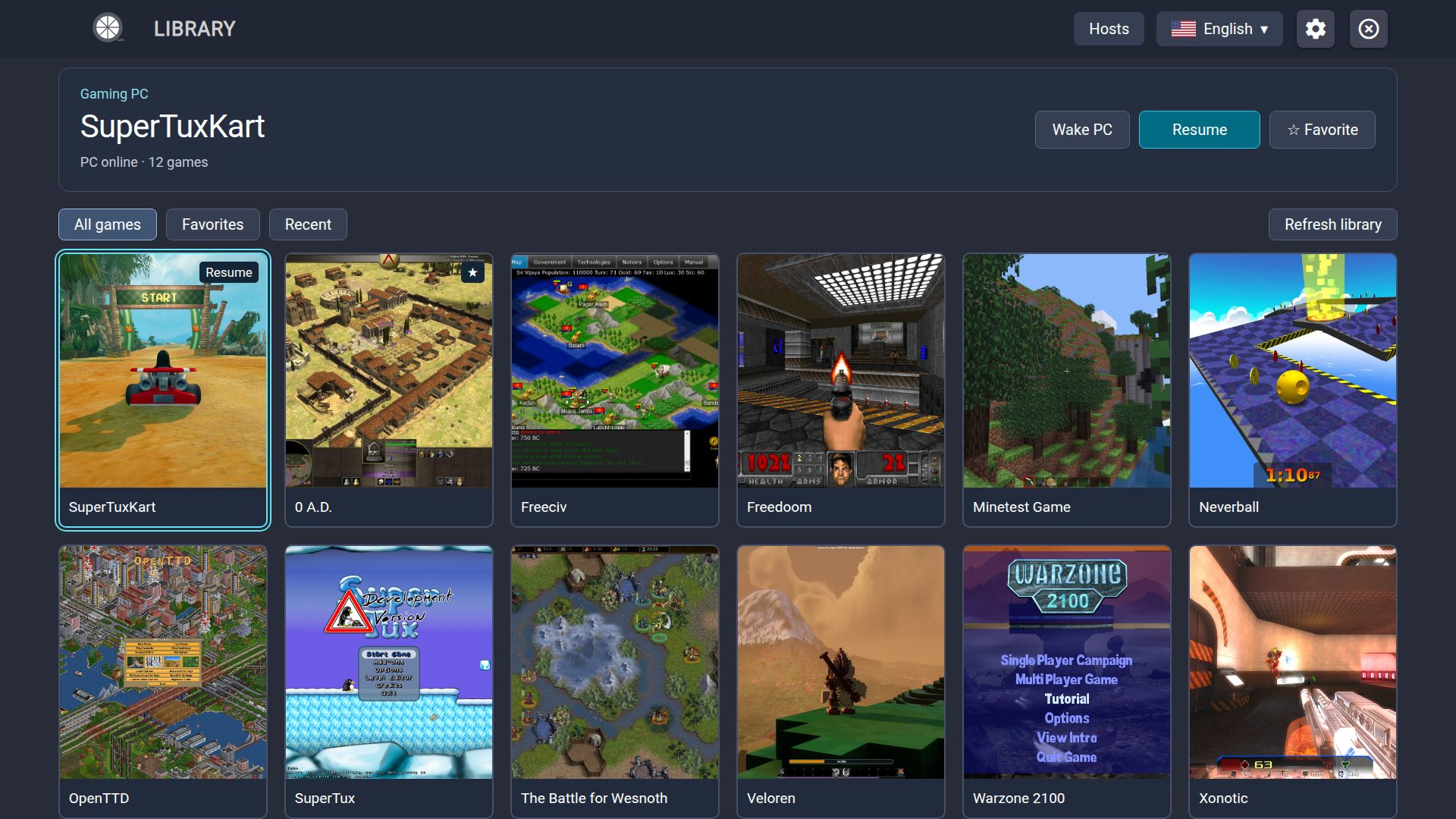
VibeLight game library on a Samsung-style TV, with open-source games and artificial PC data.
PCVibeLightTV
Illustrative screens · artificial data
Samsung · Tizen 5.5+VibeShine / SunshineMade for a controller

FROM DESK TO COUCH

Three steps to your next session.

A PC, a compatible TV and a controller. We’ll guide you through the rest.

UNDERSTAND YOUR STREAM

A smoother setup starts with better answers.

Turn on statistics when you need them. Review your last ten sessions, compare any two, and see what changed.

Explore local diagnostics

Only on your TV. Nothing is sent.

Two artificial session records compared side by side in VibeLight.
Illustrative screens · artificial data

LESS GUESSWORK. MORE PLAY.

Your next step, right here.

v4.0.3 guideAvailable release v4.0.3Reviewed

This guide covers v4.0.3, including the settings, per-game statistics and ten-session history.

Browse the guides

01 / INSTALL & UPDATE

Your first game starts here.

Choose a package, prepare the TV and keep your settings when updating.

A quick equipment check#

You need a Samsung TV with Tizen 5.5 or later, a compatible controller and a PC running VibeShine or Sunshine. Use the same local network for initial setup.

Start with 1080p · 60 FPS · H.264 · 30 Mbps. Adjust to your TV and connection.

Normal or ForceGM?#

Start with Normal. Both packages run the same code and update the same installation; ForceGM changes the TV panel Game Mode request, not streaming quality.

01

Normal · start here

Use this for your first installation and whenever playback and controls already feel good. It leaves the panel mode to the TV; you can enable Game Mode manually if your TV offers it.

02

ForceGM · try if needed

Try this if Normal feels delayed and the TV does not let you enable panel Game Mode for the app. It requests that mode; some TVs or firmware may ignore it. If it causes trouble or brings no benefit, return to Normal.

ForceGM does not enable the separate ultra-low video latency setting. Leave that setting off for your first test.

Install on your Samsung TV#

  1. 1

    Download a VibeLight .wgt from Releases and Apps2Samsung from its official project.

  2. 2

    In TV Apps / App Settings, enter 12345, enable Developer Mode, enter the installer device’s IP and restart the TV. Menus vary by model.

  3. 3

    Open Apps2Samsung, choose the TV and select your .wgt. Follow its signing and installation prompts.

Setup diagram, not a Samsung or Apps2Samsung screenshot. Follow the controls shown by your version.

Update without starting over#

Reuse your signing profile and author certificate. Avoid uninstalling the app or regenerating your certificate. Review any installer prompt that proposes removing the existing app.

Uninstalling can erase pairing, preferences and local records. Normal and ForceGM update the same installation when the signature is compatible.

Prefer Tizen Studio?#

Install TV Extensions and Samsung Certificate Extension. Connect the TV in Device Manager and allow app installation. Import the WGT, use a Samsung profile covering the TV’s DUID, then repackage/sign and run it. Reuse the existing author certificate for updates.

02 / PC & PAIRING

Let the TV find your PC.

Set up the host once. Pairing links your TV to the right computer.

Prepare VibeShine or Sunshine#

VibeShine or Sunshine runs on the gaming PC, sends picture and sound to the TV, and receives your controller commands. Choose one host; keep only one running on that PC.

  1. 1

    Download the installer for your operating system from VibeShine releases or Sunshine releases. Install it, including the controller components requested by that version, and open it.

  2. 2

    Open the host’s web interface from its tray icon or startup message. Create the administrator account if prompted. Sunshine normally uses https://localhost:47990 on the PC; VibeShine’s menu names and address may vary by version.

  3. 3

    Complete the capture and input setup offered by the host. Choose the display you want to stream, check the audio output, and resolve any capture, encoder or controller warnings before pairing. Start with the host’s default encoder settings.

  4. 4

    In Applications or the game-library page, add a game or launcher. Use Desktop for a simple first test if it is available. Save changes and keep the host running, with the PC awake.

  5. 5

    Keep the TV and PC on the same local network and allow the host through the firewall on your private network. Leave the web interface open: its PIN/pairing page is where you will enter the code shown by VibeLight.

Ready? The host opens without setup errors, your display is available, and a game or Desktop appears in its library. Now pair the TV.

Confirm the PIN#

  1. 1

    Open VibeLight and select the PC. If it is missing, use Add PC and enter the computer’s local IP.

  2. 2

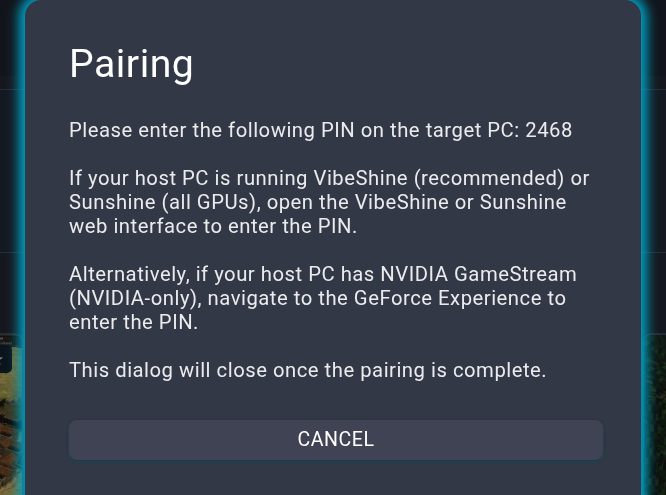
    Enter the PIN shown on the TV into the PIN page of the host’s web interface.

  3. 3

    Wait for pairing to finish, then open your game library.

Pairing screen with a demonstration PIN. Never share your real PIN or network details.
Pairing screen with a demonstration PIN. Never share your real PIN or network details. View full size ↗
  1. 01Read the PIN on the TV.
  2. 02Enter it on the PC, in the host’s PIN page — not in the installer.

Wake the PC#

Wake-on-LAN sends a wake packet over your local network. Set it up once while the PC is on; a successful send means the packet left the TV, not that the PC has finished waking.

  1. 1

    Connect the PC by Ethernet to the same local network as the TV. In its BIOS/UEFI, enable Wake-on-LAN, PME or Power on by PCI-E; the name depends on the motherboard.

  2. 2

    In the operating system’s network-adapter settings, enable waking by Magic Packet where supported. Find the physical Ethernet adapter’s MAC address; on Windows, ipconfig /all shows it as Physical Address. Do not use a VPN or virtual adapter’s address.

  3. 3

    In VibeLight, open the PC menu → Wake PC. Check the detected MAC or enter the physical adapter’s address, then use Save MAC. You can also use Wake PC in the library.

  4. 4

    Put the PC to sleep and select Wake PC on the TV. Wait for the PC and host to start, then refresh the library and select Play. Sending the packet does not launch a game automatically.

Test from sleep first. Waking over Wi-Fi or after shutdown depends on the PC, adapter and power settings; the network adapter must remain powered.

03 / PLAY & GAME MENU

Everything within reach.

Start a game, return to it and choose exactly how to leave.

Play or resume#

Connect the controller to the TV, choose a game and select Play. Resume reconnects to the running app. The connection view shows its current stage; Cancel stops the attempt.

Open the in-game menu#

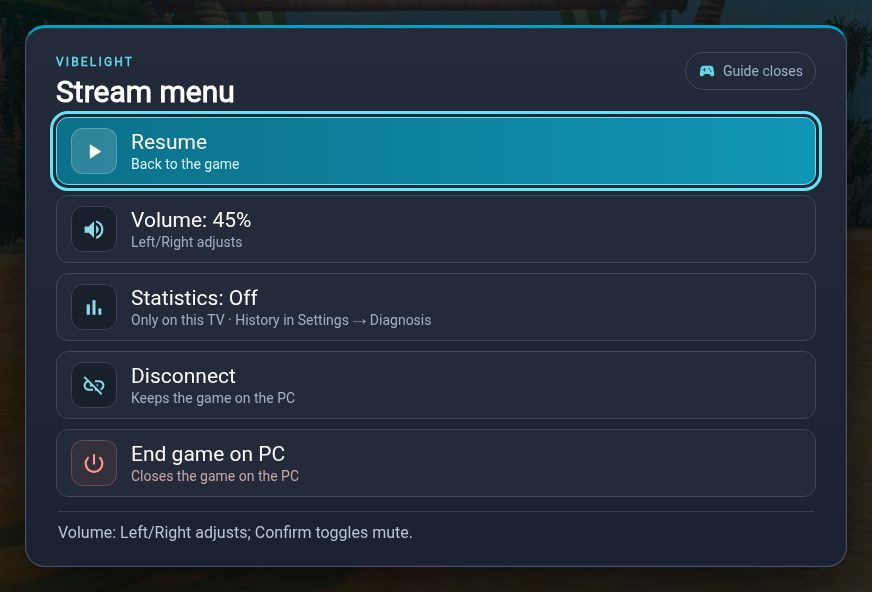
Press Guide/Home on the gamepad. From this menu you can return to the game, adjust volume, show statistics, disconnect or close the game on the PC.

Closing the game may lose unsaved progress. Leaving through Smart Hub disconnects locally; reopen VibeLight and Resume to reconnect.

The real menu rendered locally over an open-source game illustration.
The real menu rendered locally over an open-source game illustration. View full size ↗
  1. 01Resume closes this menu and returns to the game.
  2. 02Statistics starts a local record for this session.
  3. 03Disconnect keeps the game on the PC; End game on PC requests closure and asks for confirmation.

New game missing?#

Refresh library asks the PC for the game list again. It does not restart VibeLight. To reopen the whole app, use General & about → Restart app.

04 / SETTINGS

Tune what matters.

Six categories, with the effect of each adjustment close at hand.

Find the right category#

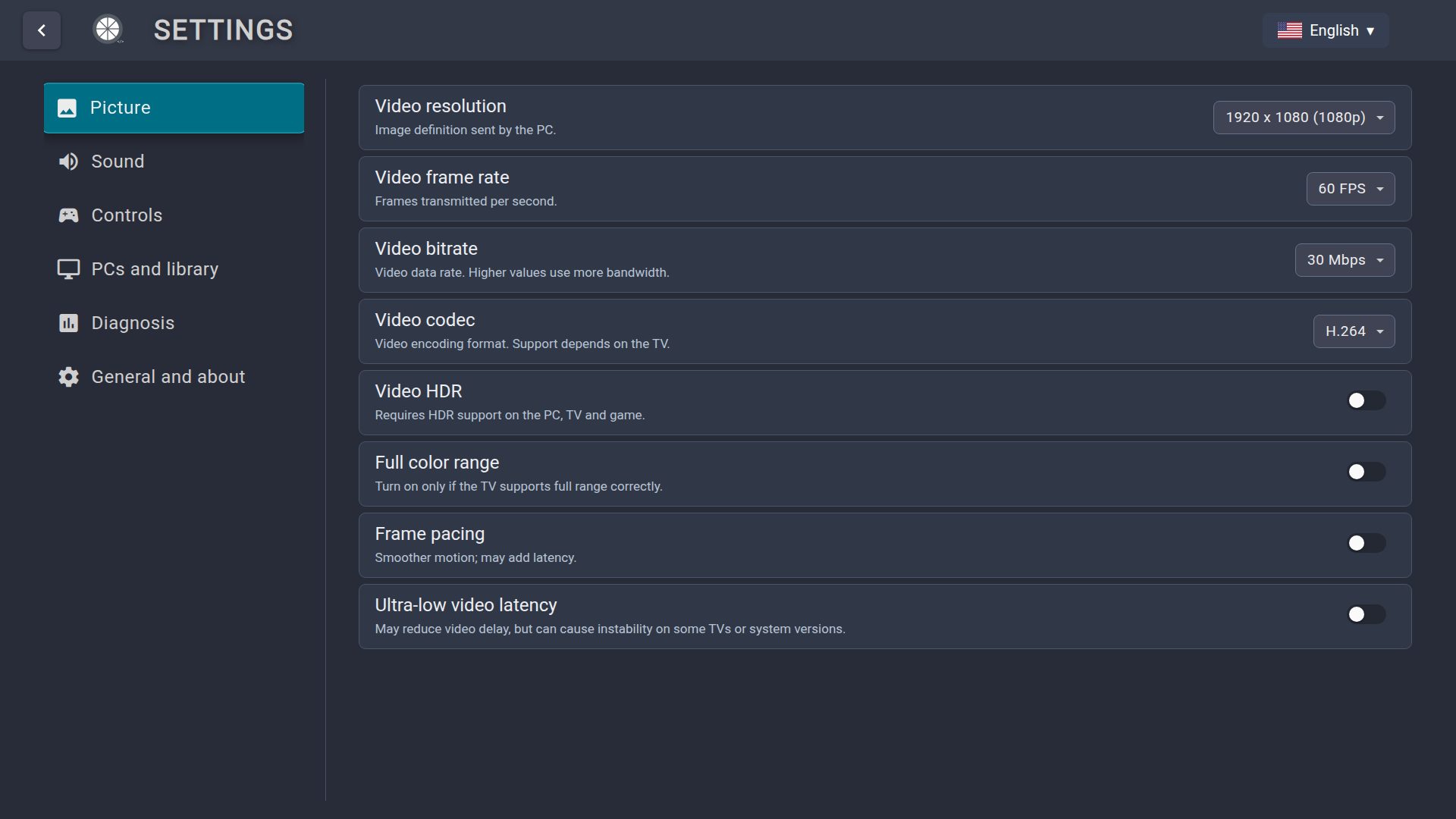
Picture: resolution, FPS, bitrate, codec, HDR, color range, frame pacing and ultra-low latency. Sound: channels, adaptive buffer ceiling and playback on the PC.

Controls: mapping, tests, sticks, triggers, rumble and mouse. PCs & library: address input, host resolution, ordering and PC removal. Diagnosis: warnings and saved records. General & about: language, menu sounds, help, restart and restore defaults.

General & about → System information shows the app version, Normal/ForceGM variant and build identifier. Unavailable means the package has no valid build metadata.

General & about → Guide and help shows a QR code and readable address for opening this guide on your phone. Choose the language on the site. Controls on this TV opens the bundled navigation reference without internet.

Picture settings in the current source. Values are illustrative.
Picture settings in the current source. Values are illustrative. View full size ↗

Ultra-low latency and ForceGM#

Ultra-low video latency selects a player mode that disables TV image enhancements to reduce delay. It is independent of ForceGM and remains off by default. Some TVs/system versions may be unstable; Tizen 9 has a history of black screens or freezing.

Frame pacing can improve motion regularity and add latency. Keep the setting that works for your TV.

Why not choose the smallest audio buffer?#

The setting is an adaptive ceiling, not a fixed delay. Audio normally starts around 20 ms and increases its margin after underruns. A smaller ceiling can cause gaps or crackling without improving a session that is already stable.

Change one setting at a time. Compare similar scenes and recording durations.

Make the controller yours#

Use Controls to map buttons, test inputs and adjust sticks or triggers. Open Analog tuning inside the mapping editor to adjust sticks and triggers. Menu sounds live in General & about; they stop before streaming.

05 / CONTROLLER MAPPING

Your buttons. Your layout.

Remap game inputs, check physical buttons and tune sticks without changing menu navigation.

Open the right controller profile#

Connect the controller to the TV, then open Settings → Controls → Controller mapping outside a game. Choose Xbox, PlayStation or Switch to match your controller. Each family has its own saved layout.

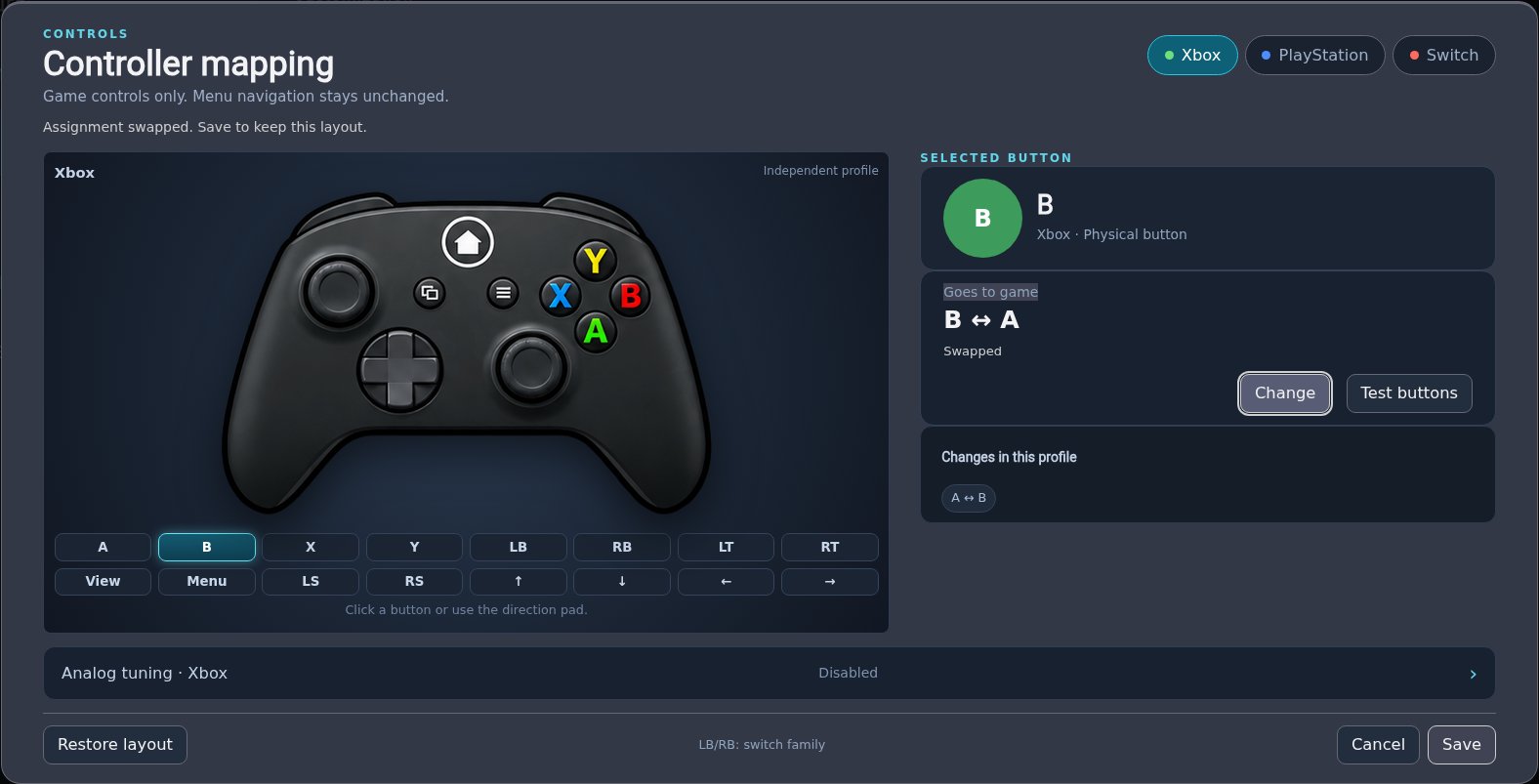
Controller mapping editor showing the family tabs, physical buttons, game input, test and save controls.
Current mapping editor with an illustrative Xbox A ↔ B swap. View full size ↗

Change what a button sends#

  1. 1

    Select the physical button in the controller diagram or button grid, then choose Change.

  2. 2

    Choose the game input it should send. For example, assign physical B to A; the previous assignment is swapped, keeping each input assigned once. Triggers can swap only with triggers.

  3. 3

    Review the swaps shown in the editor and choose Save. Cancel leaves the previously saved layout unchanged. Start or resume a stream to use the saved settings.

The layout affects game input. VibeLight menu navigation keeps the original buttons, so remapping does not change how you confirm or go back.

Test buttons and recover a layout#

Choose Test buttons and press the controller’s physical buttons to see them light up. This checks which button the TV receives; it is not a live game test of the remap.

Choose Stop test, or hold Guide / PS / Home for three seconds to leave the test. To undo customizations, choose Restore layout and then Save; this resets the selected family’s button assignments and analog tuning.

Tune sticks and triggers only when needed#

Open Settings → Controls → Controller mapping, then Analog tuning. Enable tuning to adjust deadzone, response curve, axis inversion, stick swap and trigger threshold for that family.

If a stick drifts while untouched, try a small deadzone; a larger value ignores more of its initial movement. Change one setting at a time, save and check the result in the next stream.

06 / LOCAL DIAGNOSTICS

Good questions. Useful numbers.

Record deliberately, review locally and compare sessions with context.

Start only when you choose#

  1. 1

    During a game, open the gamepad menu and enable Statistics. Recording starts then.

  2. 2

    Hide the numbers whenever you like. The same session keeps recording until you leave.

  3. 3

    After leaving, open Settings → Diagnosis → Last diagnosis.

Statistics stay on this TV. Nothing is sent. A new session starts inactive; without activation in that game, nothing is recorded.

Your last ten session records#

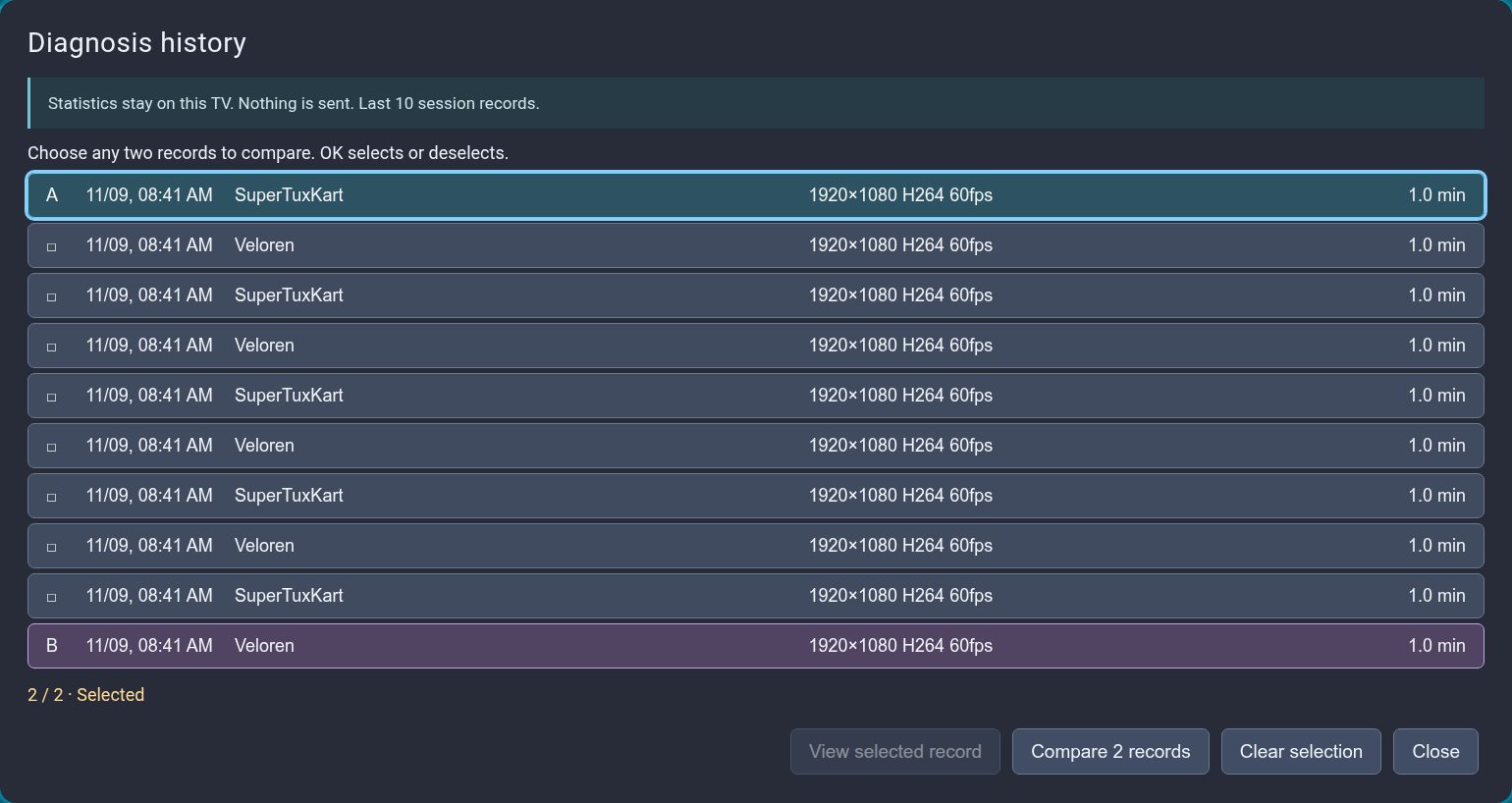
History & comparison keeps the latest ten saved sessions. Saving the eleventh removes the oldest. A session without activation does not replace previous records. Late activation is marked as partial coverage.

To delete one record, open it and choose Delete diagnosis. Confirm to remove only that record, or Cancel to keep it. The other saved diagnoses remain available.

Ten artificial session records. A and B mark the selected pair.
Ten artificial session records. A and B mark the selected pair. View full size ↗
  1. 01Select any two distinct records with OK; select again to deselect.
  2. 02A third record never replaces a selection silently. Deselect one first.

Compare A and B#

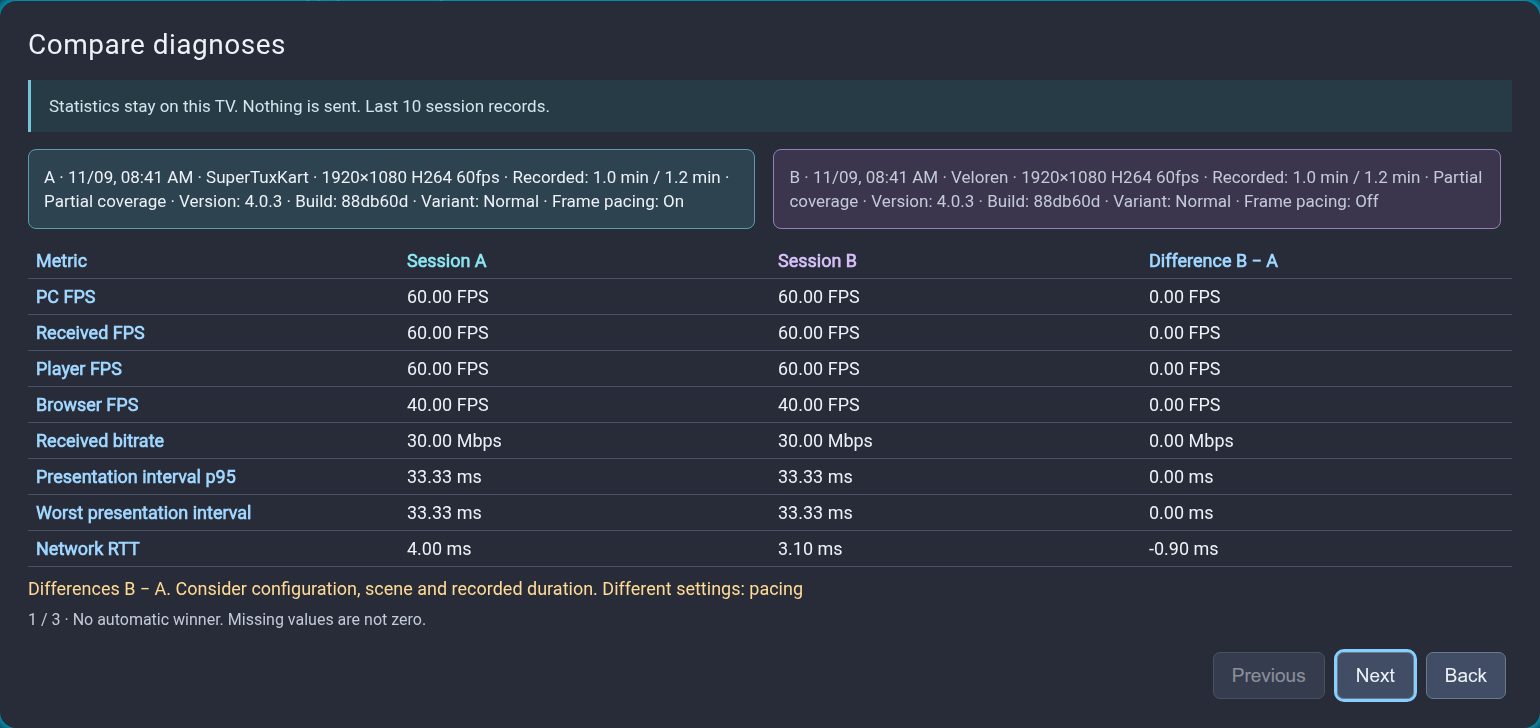
Choose Compare 2 records. The columns show each session and the difference B − A, with units and the values of settings that differ. Back preserves your selection and returns to the previous row.

Side-by-side comparison. Numbers are illustrative, not TV test results.
Side-by-side comparison. Numbers are illustrative, not TV test results. View full size ↗
  1. 01Check configuration, scene and recording duration before comparing.
  2. 02Event rates use the time actually measured; counts and denominators remain visible.
  3. 03There is no automatic winner. Missing data is unavailable, never a healthy zero.

Nine groups, with room for detail#

Transmission, FPS, smoothness, network, frames, PC processing, TV work, audio and events. Live FPS/native values use the latest window; percentiles, peaks and counters cover the recorded interval. Saved means cover the recording.

Technical details preserves clock, cadence, window deviation, frame load, TV CPU/memory, JavaScript delays and worst-episode context. Native measurement coverage is explicit. p95 means 95% of measurements were at or below that value.

RTT is network round-trip time. Clock and submission to the player do not measure button-to-image latency. Browser presentation is not a physical panel measurement. A mean of window percentiles is not a session percentile.

07 / TROUBLESHOOTING

Find your way back to the game.

Start with the symptom. Try one change and check the result.

PC missing or PIN rejected#

Check that the host is open, both devices share a network and the firewall allows the host. Add the PC by local IP, then enter the new PIN in that host’s web interface. A failed response does not prove the PC is powered off.

If starting a stream fails, read the stage and suggested action in the error dialog. Close it to return to the library; after checking the PC or settings, choose Play again.

Black screen, freezing or uneven motion#

Check the TV’s supported resolution and codec. Keep ultra-low latency off, especially on Tizen 9. If VibeLight reports failed cleanup and asks for a restart, restart before reconnecting.

For stutters despite high average FPS, enable Statistics and inspect interval p95/max, frame gaps and RTT variation. Compare equivalent scenes.

Audio gaps or crackling#

Check the output device and adaptive buffer ceiling. A low ceiling leaves less room for variation. In the diagnosis, inspect underruns/overruns and actual/target buffer.

No saved record, or a storage error?#

Enable Statistics in the game menu, leave the session and look in Settings → Diagnosis. Sessions never activated do not create records.

If saving fails, previous history is preserved and the new session may not be saved. Do not uninstall to recover records.

A failed write of settings or favorites now shows a warning. Check the TV storage and try again; changes that were not saved may be lost after restarting the app.

08 / ABOUT & REFERENCES

Independent. Open source.

VibeLight is a Moonlight Tizen fork for streaming PC games to Samsung TVs.
Project and support#

Use the project’s issues for reproducible problems. Include app version, TV/Tizen and steps. Hide private network data and credentials in screenshots.

Which version does this guide describe?#

Reviewed 9 November 2026. This guide covers the published v4.0.3 release, including its settings and local session history.

Check your installed version in General & about → System information. See the release notes for changes between versions.

Images, licenses and technical references#

App screens use artificial PCs, games and measurements. Installation artwork is a diagram. They do not claim physical TV validation or endorsement by Samsung or game developers. Open-game artwork retains its original credits and licenses.

Find an answer

Search settings, setup and troubleshooting.

Search runs in your browser. No query is sent.